
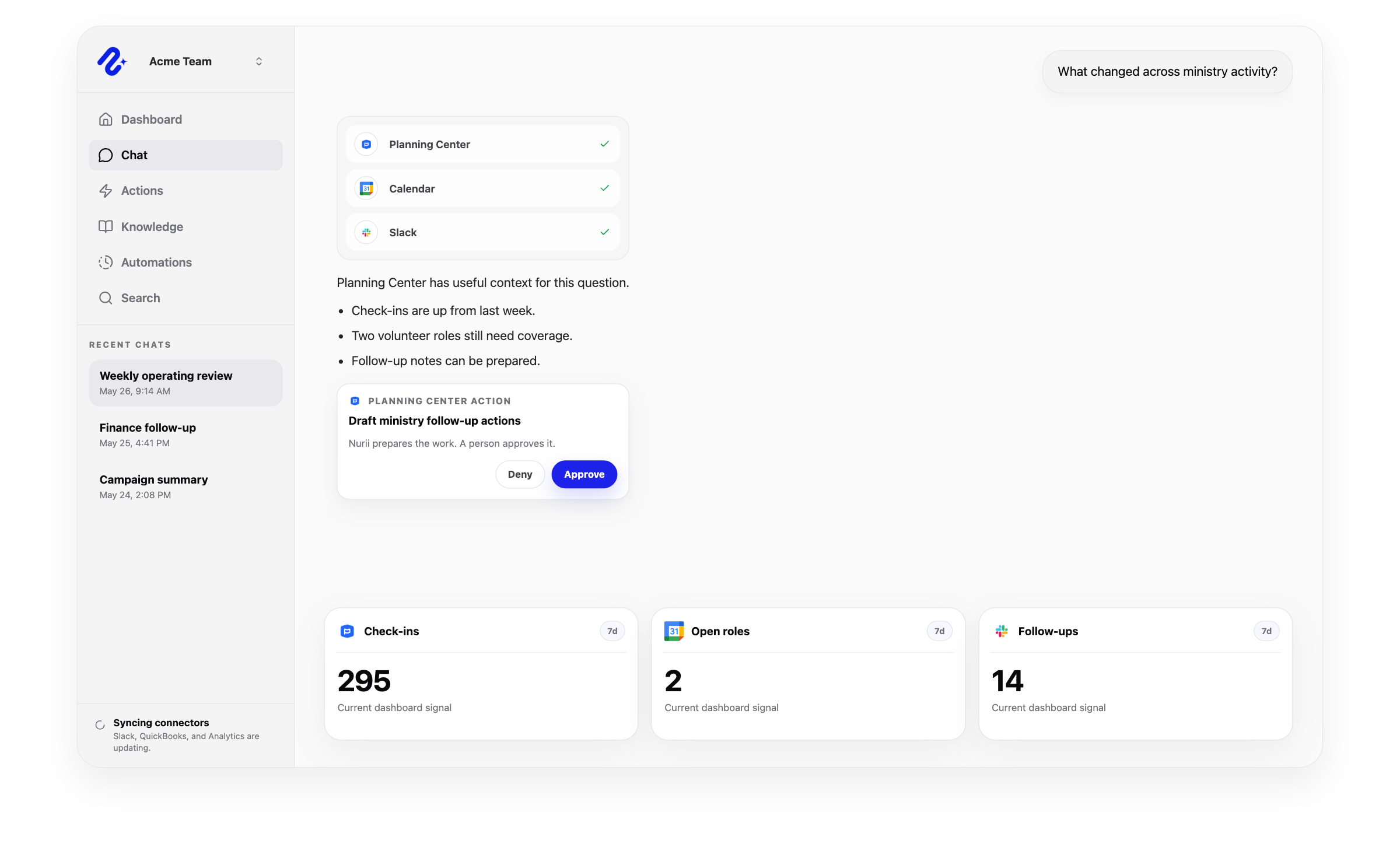

Nurii connects Planning Center context with calendars, Slack, finance, website, email, and Knowledge so churches can see operational health without stitching reports by hand.
Access model: Shared organization connection. Nurii uses this connector to bring the right app context into dashboards, AI chat answers, scheduled reports, and reviewed workflows.
What Nurii can access and prepare in Planning Center
Clear scope matters for AI integrations. Nurii uses authorized Planning Center church operations context for answers, dashboards, automations, and reviewed workflows while keeping important limits visible.
Can use as context
Services, People, Calendar, and Groups data enabled for the organization.
People, households, contacts, workflows, teams, positions, service plans, notes, and group memberships where authorized.
Church operations context used in dashboards, reports, and follow-up.
Actions Nurii can prepare
Schedule or remove volunteers, update needed positions, manage blockouts and team-position assignments, and upsert plan notes.
Create, update, or delete Calendar resources.
Create or update people, contacts, households, notes, workflow cards, workflow steps, and group memberships.
Important boundaries
Requires Planning Center sensitive access and the needed product enabled.
Supported writes are prepared for review and depend on member permissions, connector setup, and enabled action access.
Excludes Giving writes, Calendar event or request edits, auto-schedule, and broader People administration.
Common workflows
What teams can do with Planning Center and Nurii
Use Planning Center + Nurii when the work depends on trusted church operations context, recurring visibility, and follow-up that stays inside reviewable boundaries.
Planning Center AIchurch operations softwarechurch management software AI
Related platform
How the Planning Center integration fits the Nurii platform
Use connected app context in dashboards, AI chat, scheduled workflows, and approved actions without turning every system into a separate reporting chore.
Answers for teams evaluating Planning Center AI reporting, workflow automation, dashboards, AI chat, and approved follow-up with Nurii.
Does Nurii integrate with Planning Center?
Yes. Nurii connects Planning Center context with calendars, Slack, finance, website, email, and Knowledge so churches can see operational health without stitching reports by hand.
What can teams do with Planning Center + Nurii?
Teams use Planning Center + Nurii for workflows such as Attendance and check-in briefs, Follow-up task planning, Ministry operations reviews, plus AI chat, dashboards, scheduled reports, and approved follow-up for supported workflows.
What can Nurii access in Planning Center?
Nurii can use authorized Planning Center context including: Services, People, Calendar, and Groups data enabled for the organization. People, households, contacts, workflows, teams, positions, service plans, notes, and group memberships where authorized. Church operations context used in dashboards, reports, and follow-up. Requires Planning Center sensitive access and the needed product enabled.
Can Nurii take action in Planning Center?
Yes. Nurii can prepare supported Planning Center actions for review, including: Schedule or remove volunteers, update needed positions, manage blockouts and team-position assignments, and upsert plan notes. Create, update, or delete Calendar resources. Create or update people, contacts, households, notes, workflow cards, workflow steps, and group memberships.
Is the Planning Center integration shared or connected by each member?
Planning Center uses a shared organization connection in Nurii. Authorized organization users manage the connection and the selected resources available to shared workflows.
Can Nurii use Planning Center data in AI automations?
When authorized, Nurii can use Planning Center context in AI automations for recurring reports, monitoring, and follow-up preparation. Available actions depend on connector permissions and Nurii support.
See what is happening. Move the work forward.
Connect your tools and give your team one AI workspace for answers, dashboards, automations, and approved actions with clear controls.